
Using Spiber Med
How to find equipment, ask for a price, place an order, book treatment abroad and manage your account.
Last checked against the live site on 5 September 2026.
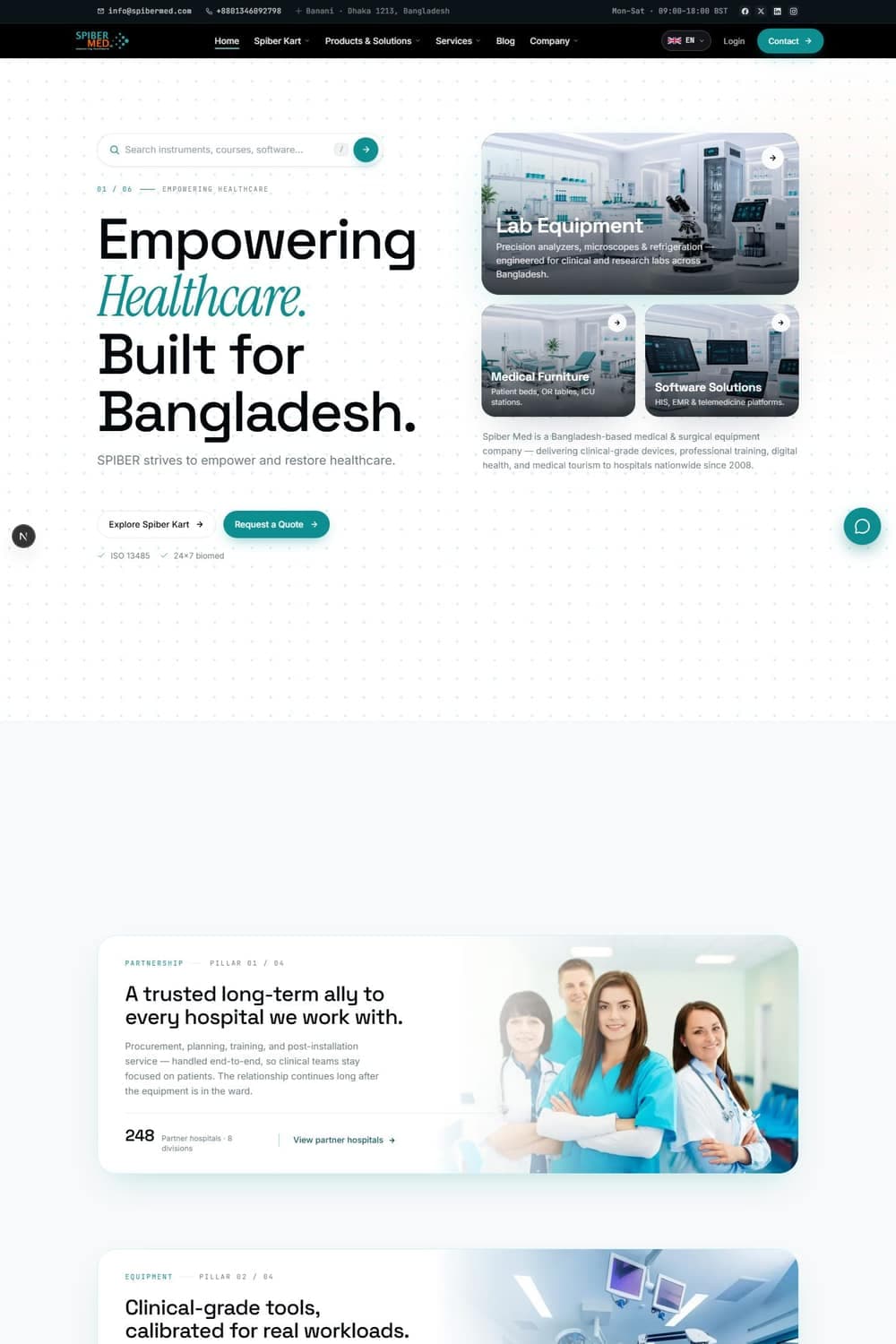
What is where
Spiber Med is one company with several parts. Knowing which part you need saves the most time.
- Spiber Medtrade
- Medical equipment and consumables for hospitals, clinics and labs. Most items are priced on request, so you ask for a quotation rather than buying straight away.
- Spiber Kart
- The everyday shop: health devices, wellness products, technology and home goods. Everything here has a price and can be bought immediately.
- Spiber MedAcademy
- Training courses for clinical and technical staff, taken online at your own pace.
- Spiber Digihealth
- Software for clinics and hospitals, either ready to buy or built to order.
- Spiber Tourism
- Treatment abroad: finding a hospital or specialist, getting a cost estimate, and arranging the travel around it.
- Health Corner
- Health information and guidance. This section is still being built.
The site is available in English, Bangla and Japanese. Use the flag control in the header to switch. Product names and descriptions appear in your chosen language where a translation exists, and fall back to English where it does not.
Finding a product
There are three ways in, and they suit different situations.
- Search from the home page when you know roughly what you want. Results are grouped by division as you type, so you can see at a glance whether something is equipment, a course or software.
- Use the header menus when you would rather browse. Products and Solutions covers Medtrade and Digihealth, and Services covers Tourism and Health Corner.
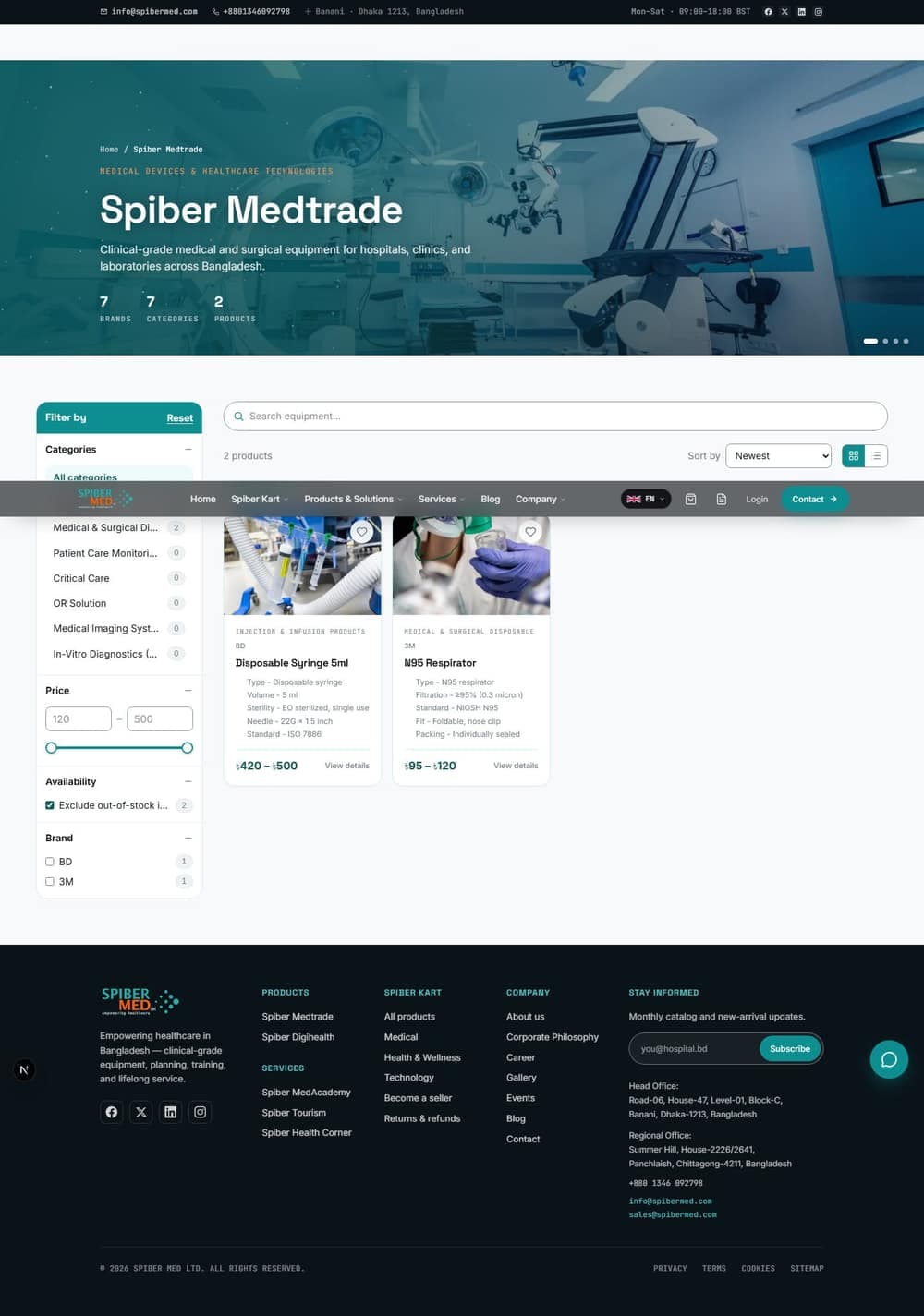
- Use the filters on a catalogue page when you are narrowing down. Every filter you choose is added to the web address, so you can bookmark a filtered view or send it to a colleague and they will see exactly the same list.
How Medtrade prices work
Medical equipment is not priced like everyday goods. You will see one of three things, and each means something different.
- Price on request
- No price is published. These items are quoted per order, because the cost depends on configuration, quantity and delivery. There is no Add to cart button; you add the item to a quote list instead.
- A single price
- A fixed price you can buy at straight away.
- A price range, for example ৳420 to ৳500
- The item has a published price and a negotiable floor. The higher figure is the list price you pay at checkout. The lower figure is as far as Spiber Med will discuss coming down for the right order. To have that conversation, use Negotiate price rather than buying.
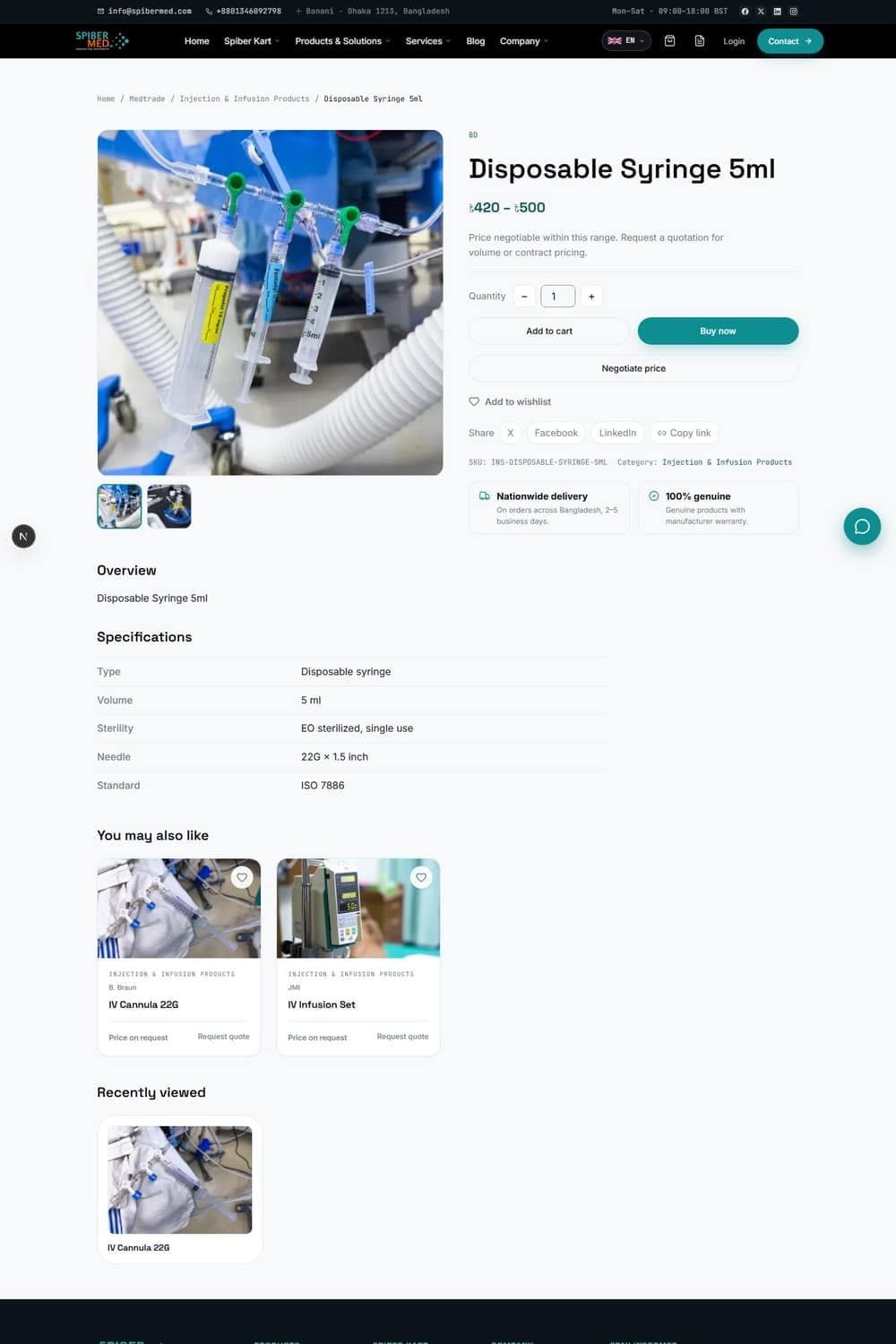
Buying never applies the lower price automatically
Checkout always charges the list price. The floor only applies to a price agreed through a quotation, so a discount is always something a person has confirmed.
Asking for a quotation
A quotation is the normal way to buy equipment. You can request one without an account.
- 1On any Medtrade product, choose Add to quote, or Negotiate price if the item already has a price.
- 2Keep browsing and add anything else you need. One request can mix priced and quotation-only items.
- 3Open the quote list and set the quantity for each line.
- 4Fill in your details. Name, email and district are required; an organisation, phone number and timeline help the team quote accurately.
- 5Submit the request. You will be given a reference beginning SPM-RFQ, and a copy is emailed to you.
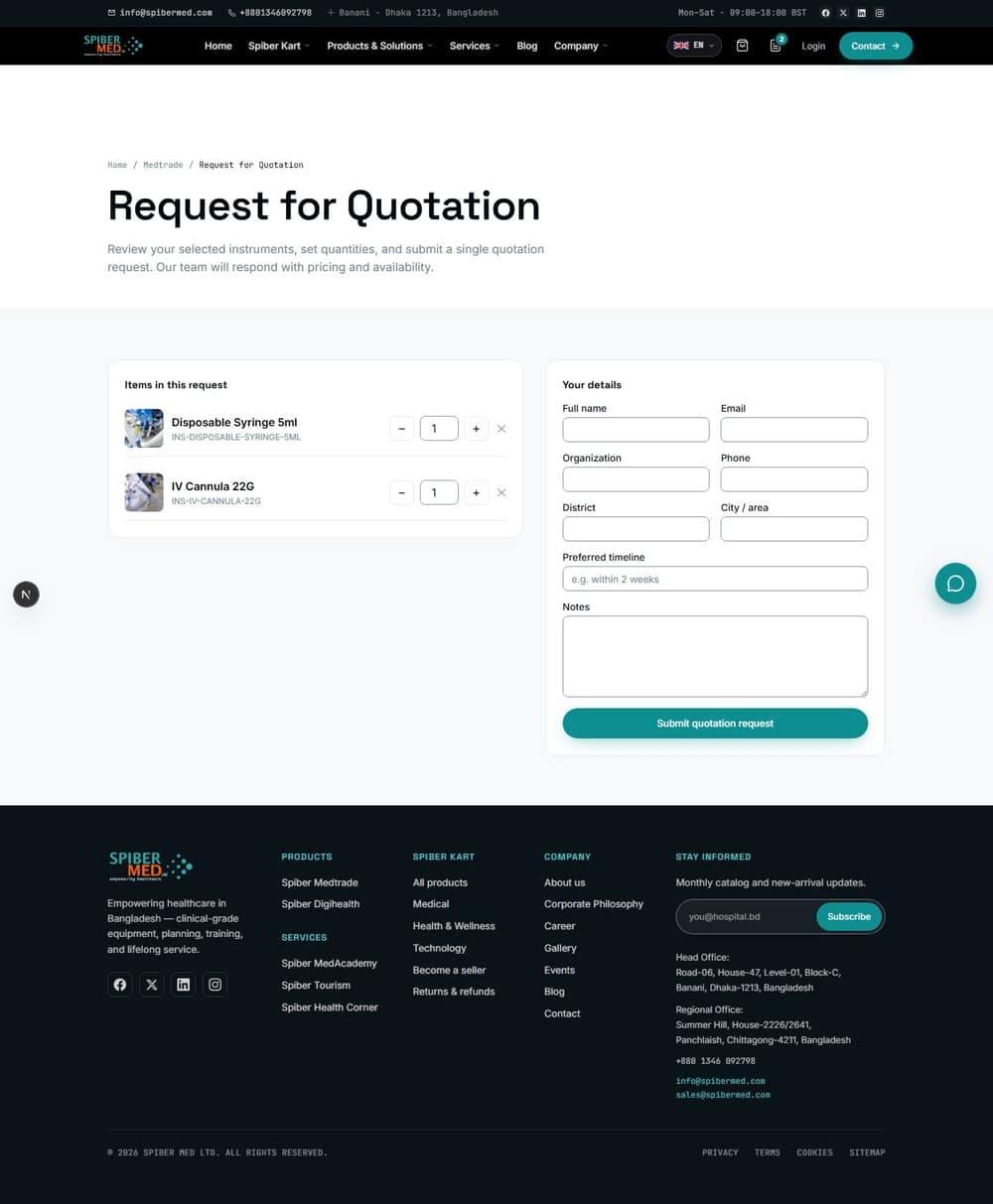
The team replies with a price, how long it is valid for, and any attached document. If you were signed in when you asked, the quotation and its price appear under Quotations in your account. If you asked as a guest, keep the reference from the confirmation email.
Buying from Medtrade
Items that carry a price can be bought directly. Tax works differently here than on Spiber Kart.
- 1Add the item to the cart and open the cart to check quantities. Medtrade and Spiber Kart keep separate carts, so equipment and everyday goods never mix in one order.
- 2Go to checkout and fill in the delivery address.
- 3Choose how to pay. Cash on delivery is available to everyone. Paying on account terms is available once you have an approved credit account.
- 4Place the order. You will get a reference beginning SPM, a confirmation on screen and an email.
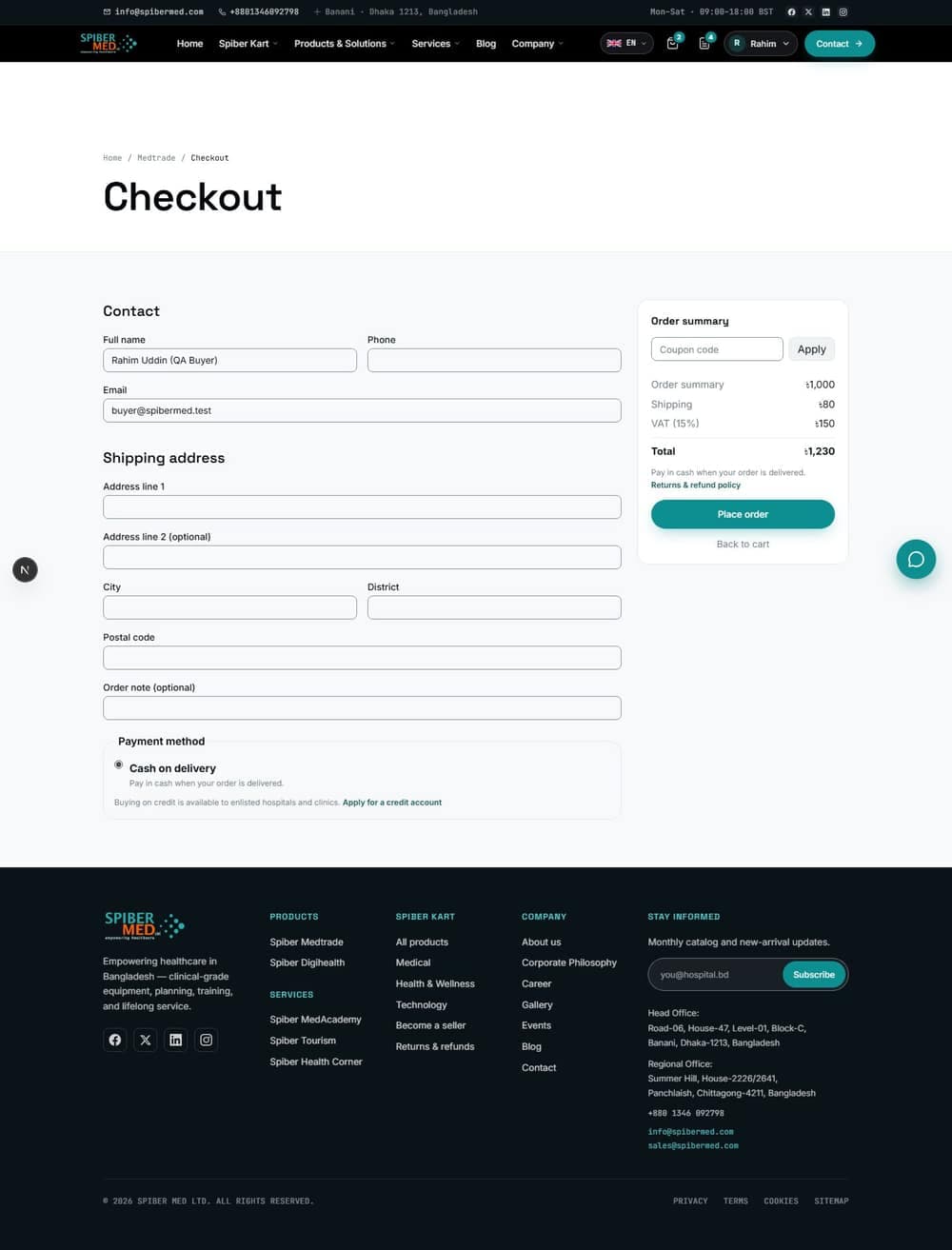
- VAT
- Charged by Spiber Med and added to your total. It is calculated on the goods only, not on the shipping fee.
- AIT (advance income tax)
- Shown on the invoice for your records. It is not added to what you pay. Where the law requires it, you deduct it at source when you settle the invoice.
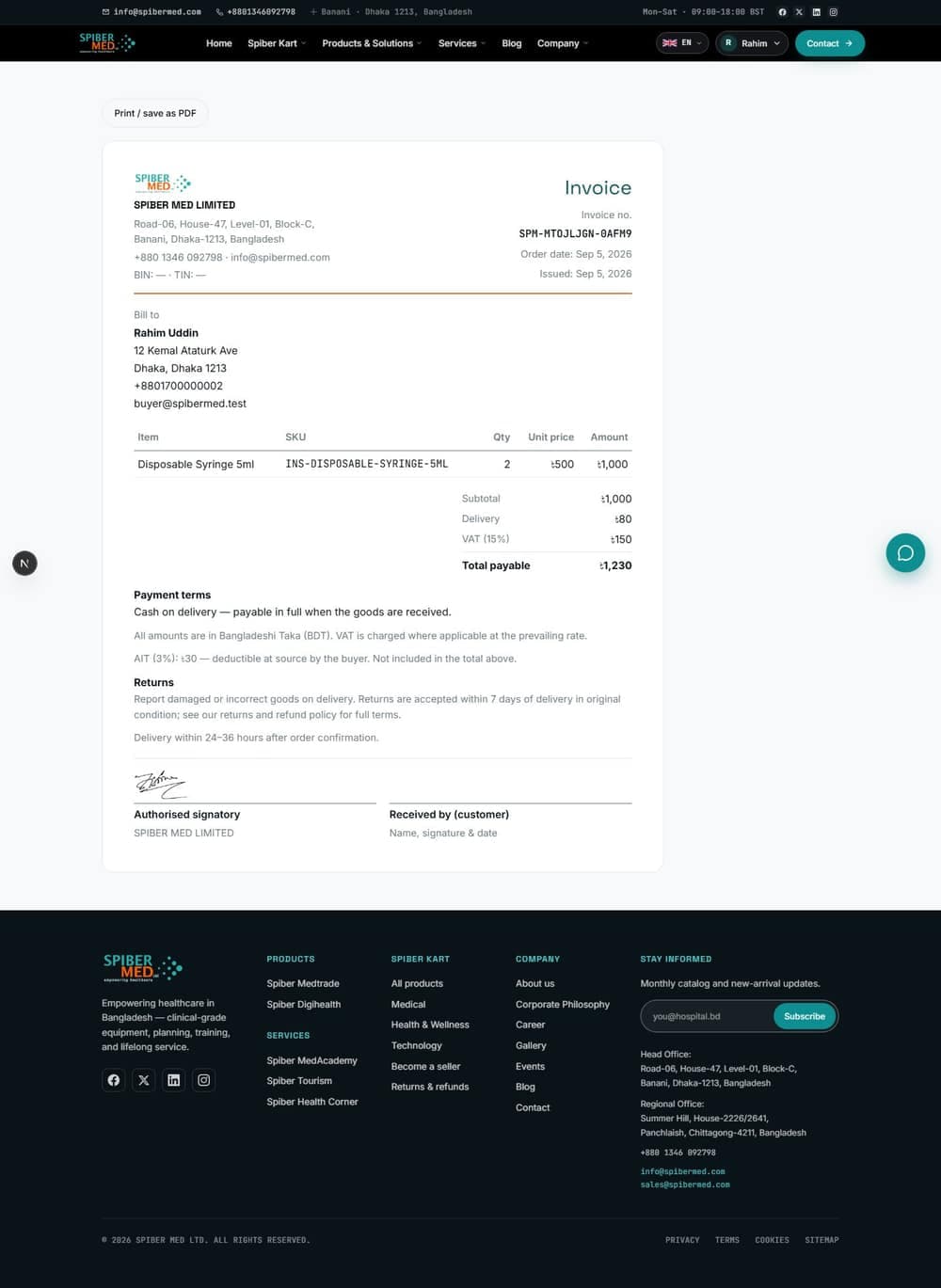
Buying on account terms
Registered institutions can order now and settle the invoice later.
- 1Open Credit facility from the Medtrade menu and apply. You will need your trade licence and your organisation's details.
- 2Spiber Med verifies the documents, usually within a few working days.
- 3Once approved, Credit account appears as a payment choice at Medtrade checkout, with your agreed terms shown beside it.
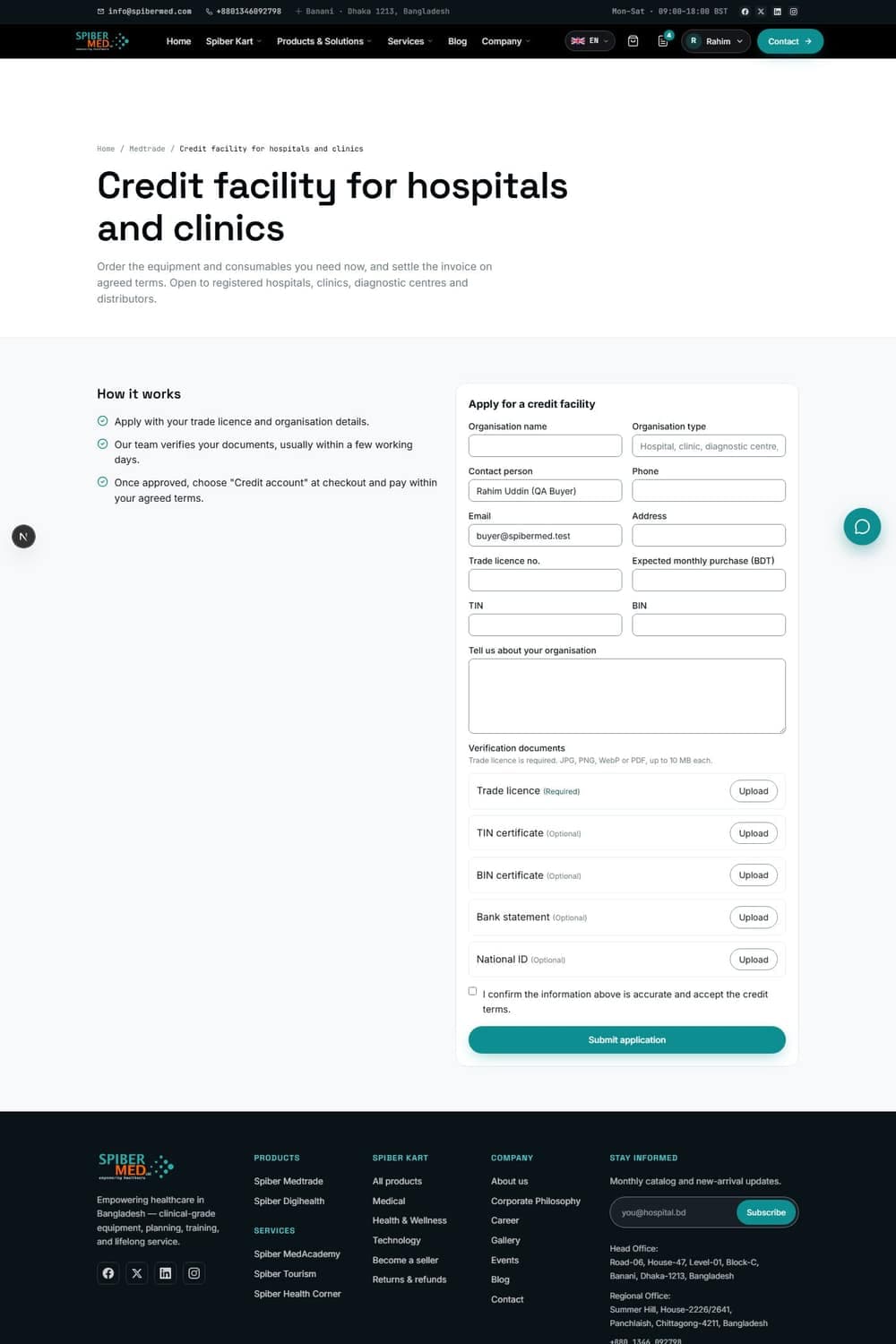
Until an account is approved, cash on delivery is the payment option at Medtrade checkout. The link to apply sits directly under the payment choices.
Shopping on Spiber Kart
Everything on Kart has a price and can be bought immediately.
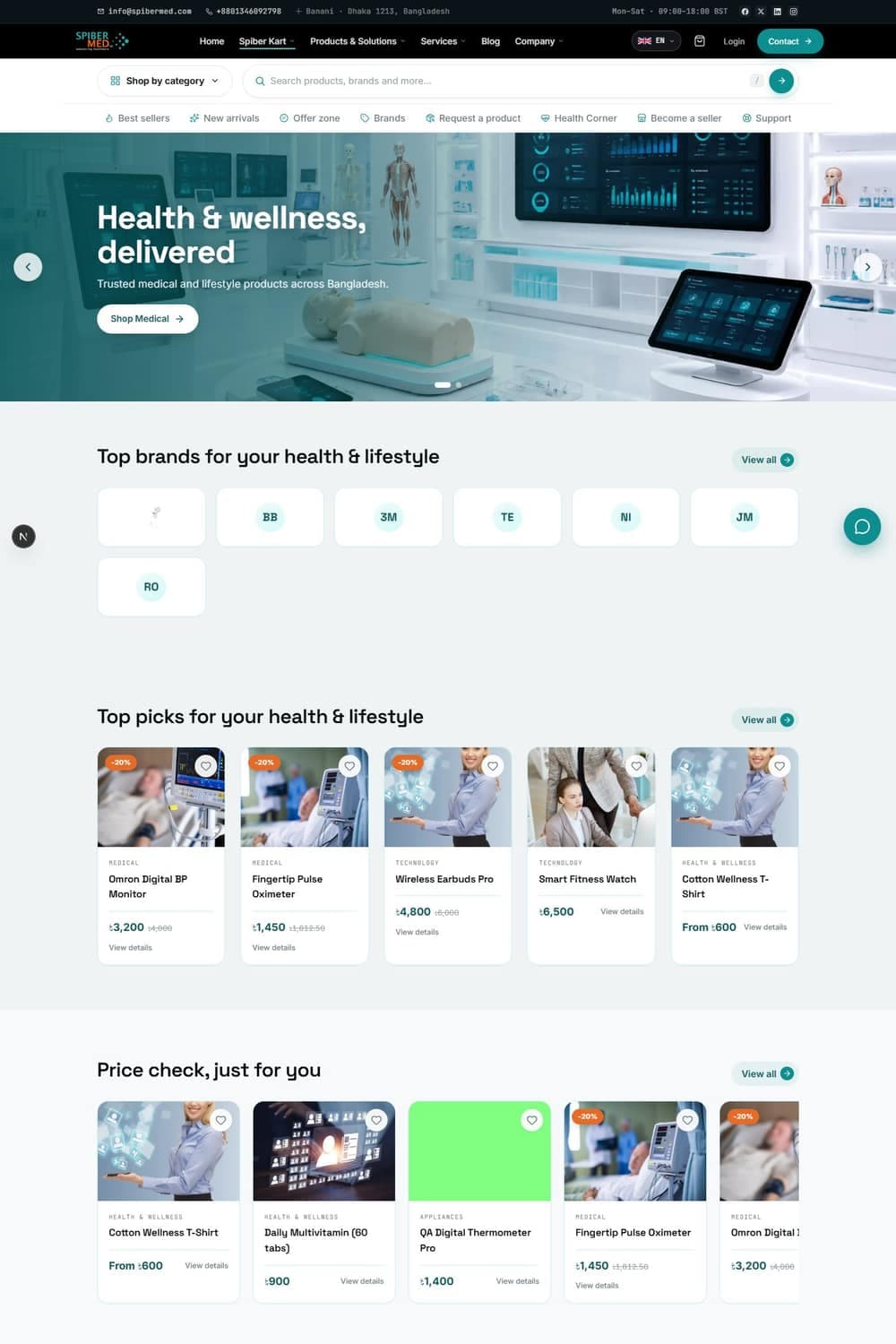
- The shop page filters by category, brand, price, rating, availability and whether something is on sale. Filters apply without reloading, and you can switch between a grid and a list.
- A price with an older figure struck through beside it is a genuine reduction, and the badge shows the saving as a percentage.
- Some products have options such as size or colour. Each combination has its own price and its own stock, so choose the option before adding to the cart.
- Every product says who sells it. House stock is sold by Spiber Kart; anything else names the seller and links to their shopfront.
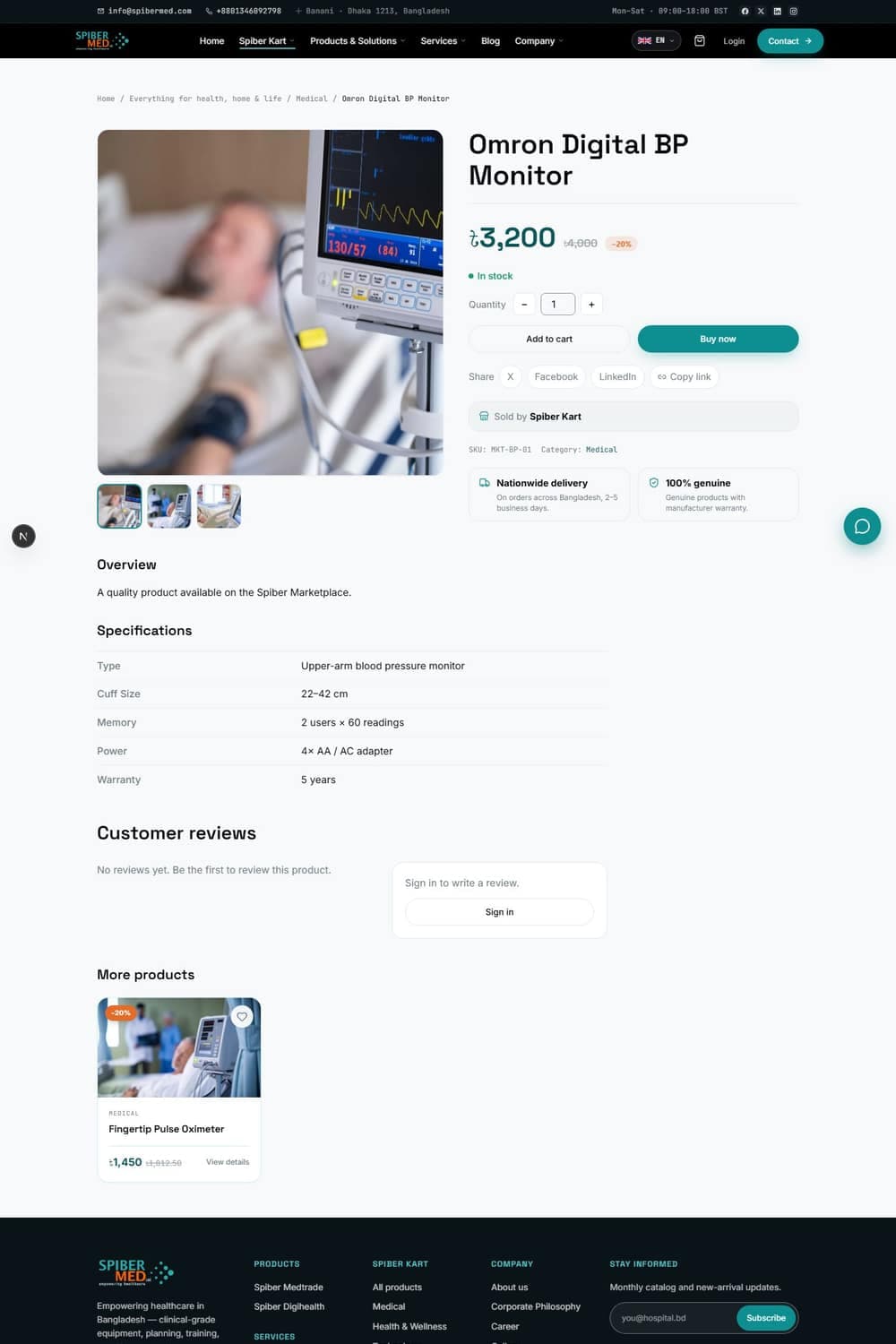
- 1Add what you want to the cart and open the cart to adjust quantities.
- 2At checkout, fill in the delivery address and apply a discount code if you have one.
- 3Place the order. The reference and the full details appear under Orders in your account.
Cannot find something?
Use Request a product from the shop menu. Describe what you need and the sourcing team will look for it and come back to you.
Changing or returning an order
What you can do yourself depends on how far the order has progressed.
- Not yet paid
- You can cancel the order yourself from the order page in your account. Stock goes straight back.
- Paid, or already delivered
- Ask for a refund from the same page. The request goes to the team, who settle it and confirm. Delivered orders can be returned within the window set out in the returns policy.
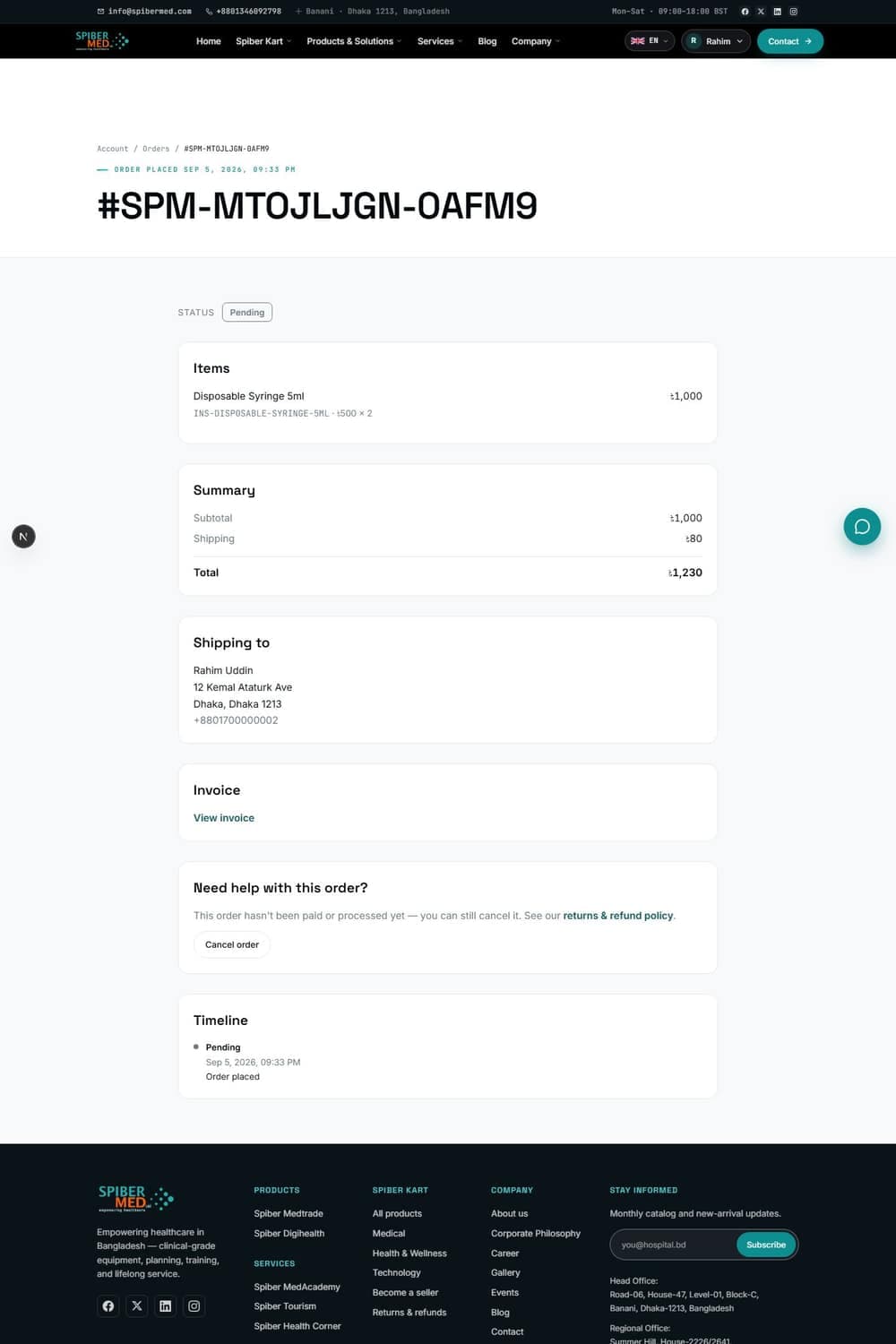
The full returns and refund policy is linked from checkout, from every order and from the footer.
Taking a course
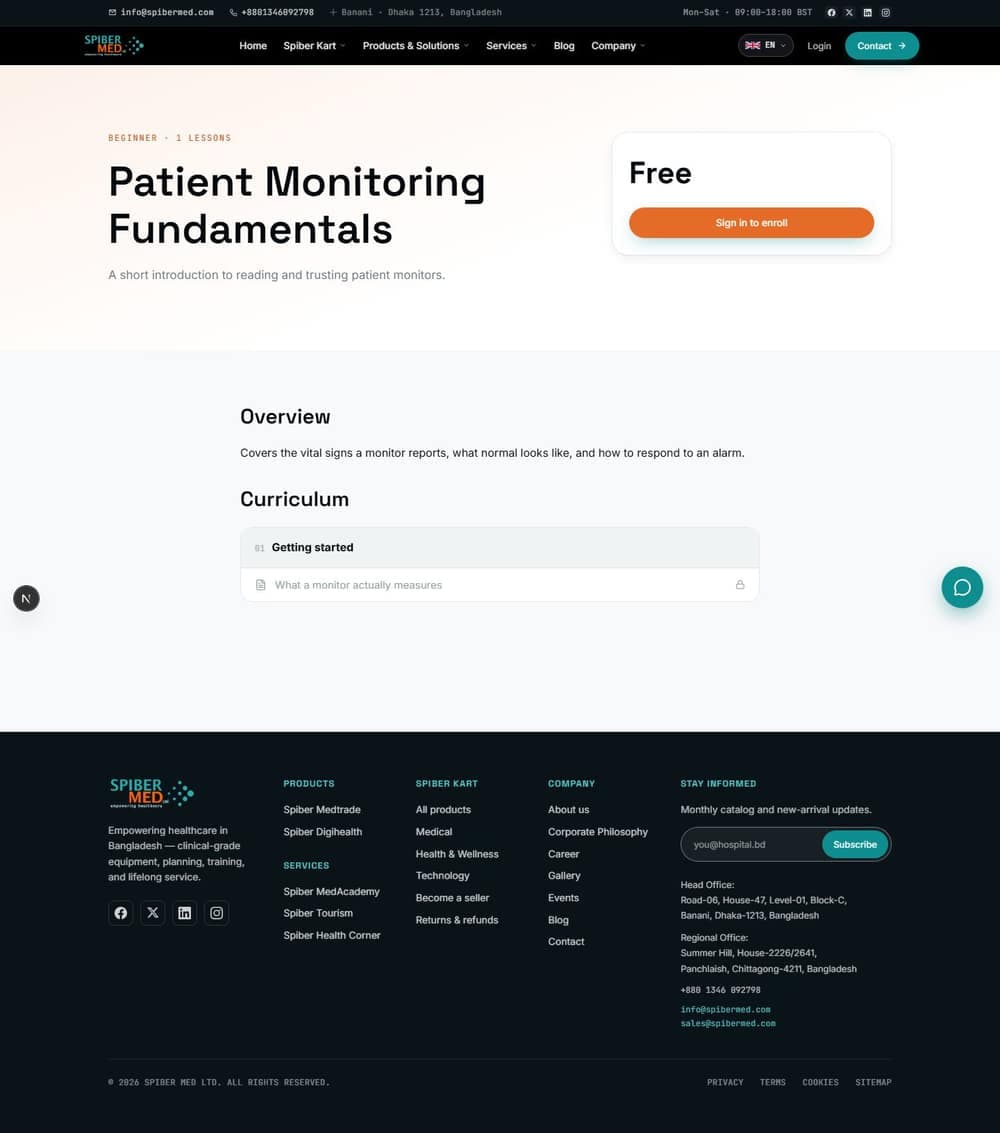
Courses are taken online, at your own pace.
- 1Browse the catalogue and open a course to see what it covers and how long it takes.
- 2Sign in, then enrol. Free courses open immediately. Paid courses are confirmed once payment is arranged, and the lessons unlock then.
- 3Work through the lessons. Your progress is saved as you go, so you can stop and come back.
- 4Finish every lesson to receive a certificate, which you can view and print from your account.
Software for your clinic
Ready-made software, or something built for you.
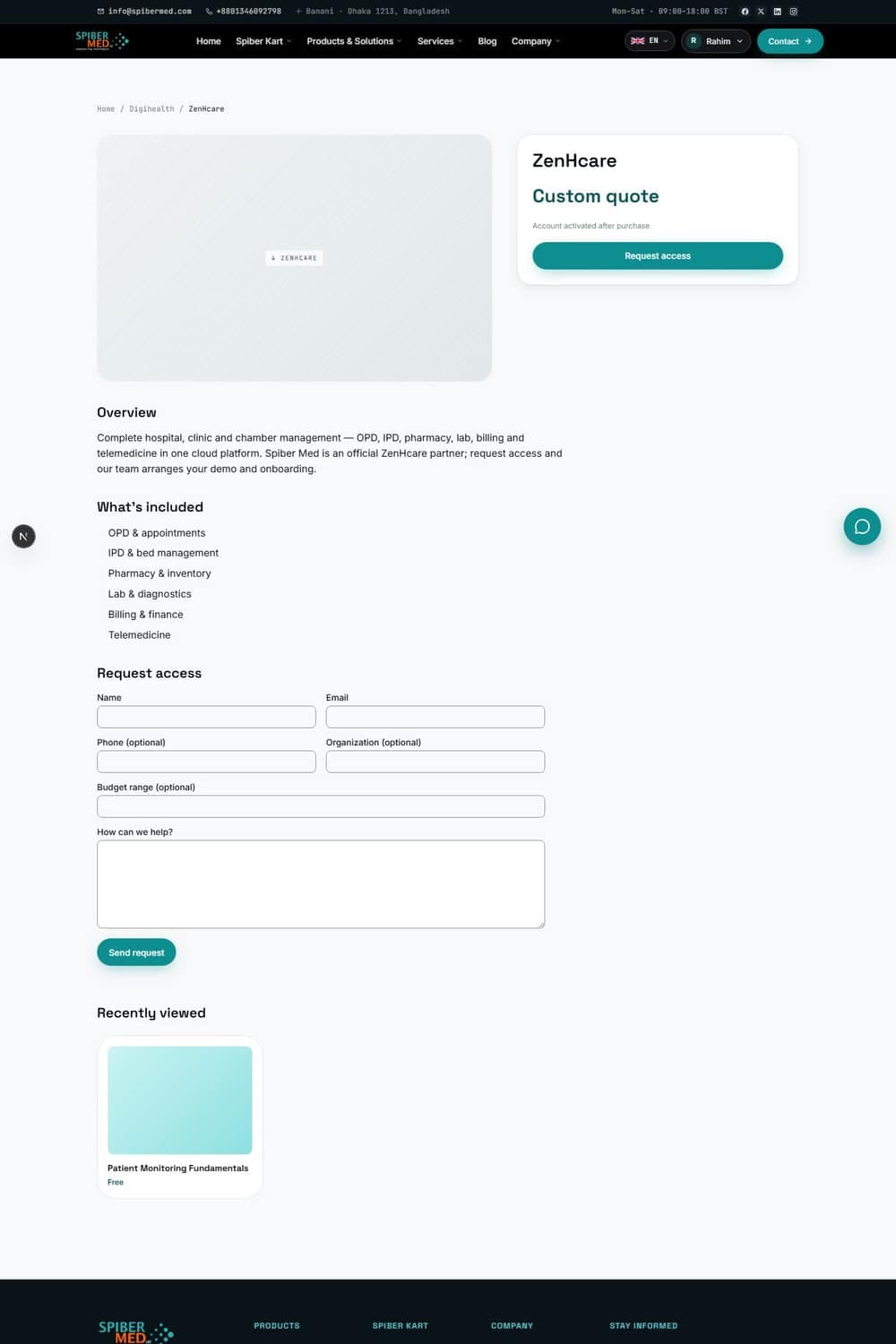
- Products with a price can be bought outright. You need an account, because access is tied to it.
- Products marked for quote are not sold directly. Ask for access and the team will come back with pricing.
- After buying, downloads and any licence key appear under Software in your account.
- For something that does not exist yet, use the custom solutions page to describe what you need.
Arranging treatment abroad
From finding a hospital to landing back home, handled as one case.
- 1Browse destinations, hospitals, specialists or treatment packages. Package pages quote a cost in taka with the foreign estimate labelled beside it.
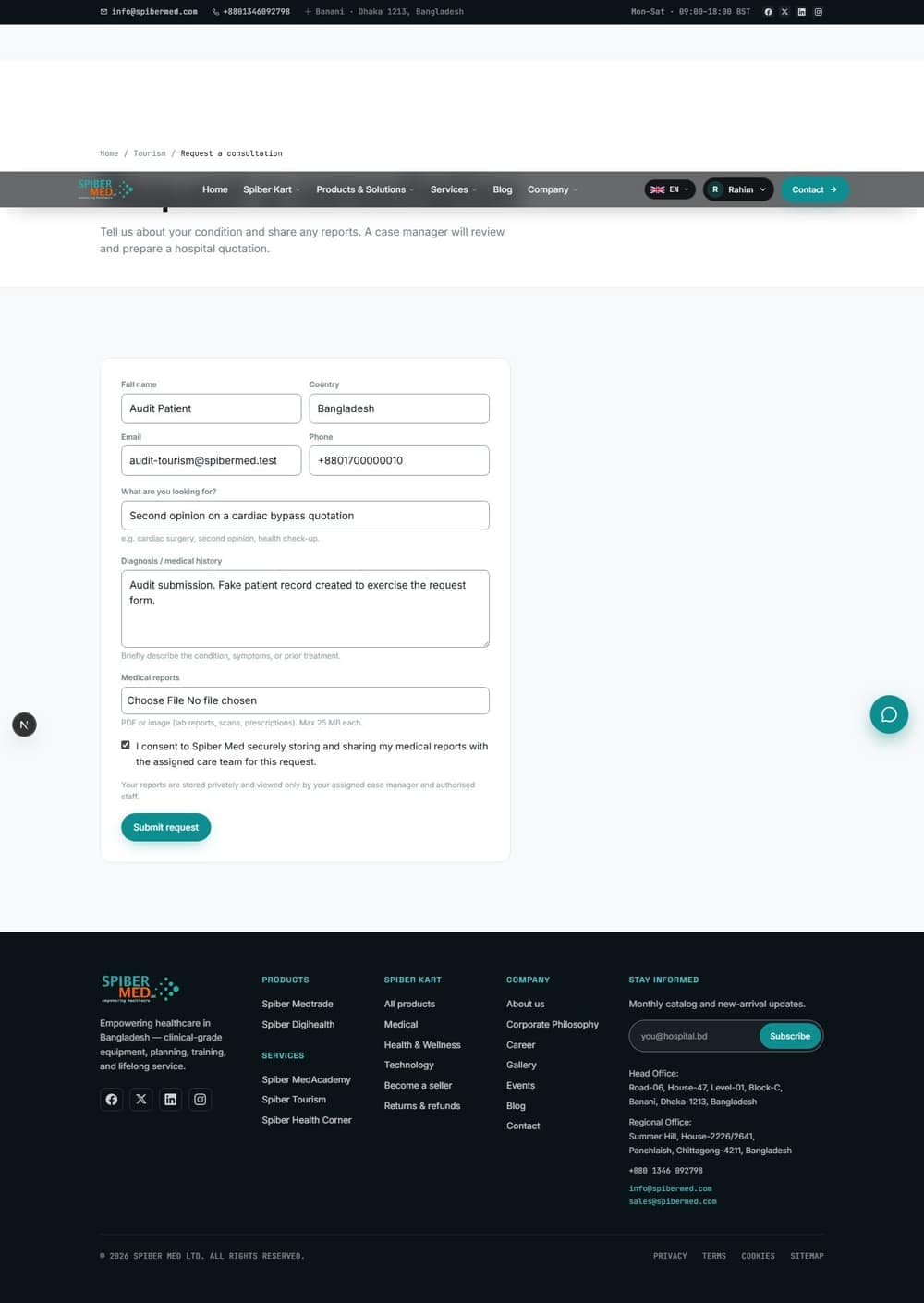
- 2Choose Get treatment cost or Request a consultation. If you came from a package or hospital page, the form remembers it.
- 3Fill in the patient details and describe the condition.
- 4If you want to attach a medical report, tick the consent box first. The file picker stays locked until you do, so nothing medical is ever sent by accident.
- 5Submit. You will get a reference beginning SPM-CASE.
Who can see your reports
Uploaded reports are stored privately and are readable only by the case manager assigned to you and authorised staff. Every time a report is opened it is logged. Reports are never shown in a public link, and the case tracker only ever tells you how many documents are attached, never their names.
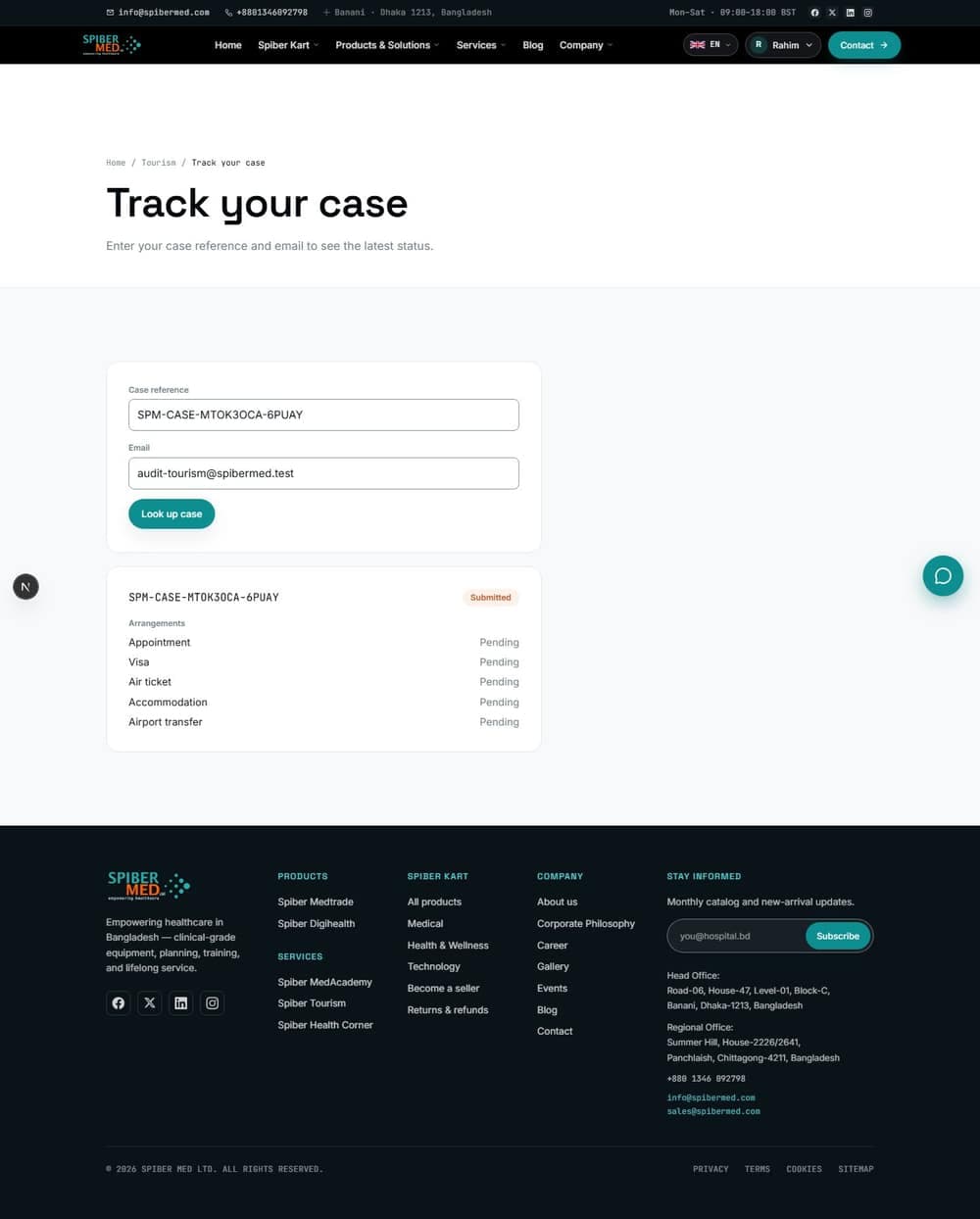
Track a case at any time from Case lookup using the reference and the email you used. You will see the current status and the travel checklist. If you were signed in when you submitted, the case is also listed under Cases in your account. Flights, hotels, visa help and airport transfers are requested from the travel pages; each is arranged by a person rather than booked instantly.
Your account
One account covers every division.
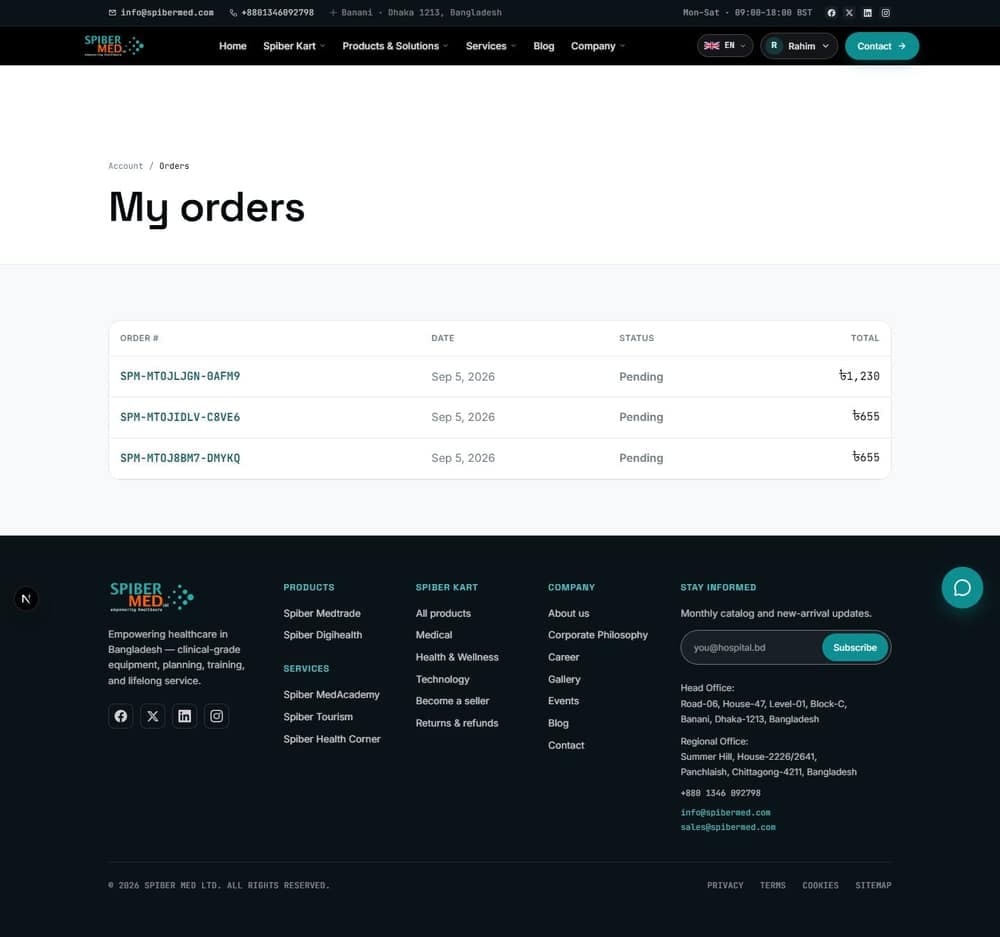
- Orders: everything you have bought from either storefront, with the invoice and the actions available at each stage.
- Quotations: requests you have made and the prices that came back.
- Cases: medical tourism cases and their progress.
- Courses: what you are enrolled on and your certificates.
- Software: downloads and licence keys.
- Wishlist: products you have saved for later.
- Profile: your name, phone number and default delivery address, which pre-fills checkout. You can also change your password here.
Changing your password signs you out on every other device but keeps you signed in here.
Selling on Spiber Kart
Spiber Kart takes third-party sellers. Applications are checked before anything goes live.
- 1Sign in, then open Become a seller. The application is tied to your account.
- 2Give your business details and upload your documents. A trade licence is required; a national ID is asked for as well.
- 3Accept the seller terms and submit. You will get a reference beginning SPM-SEL.
- 4Spiber Med reviews the documents and emails you the decision.
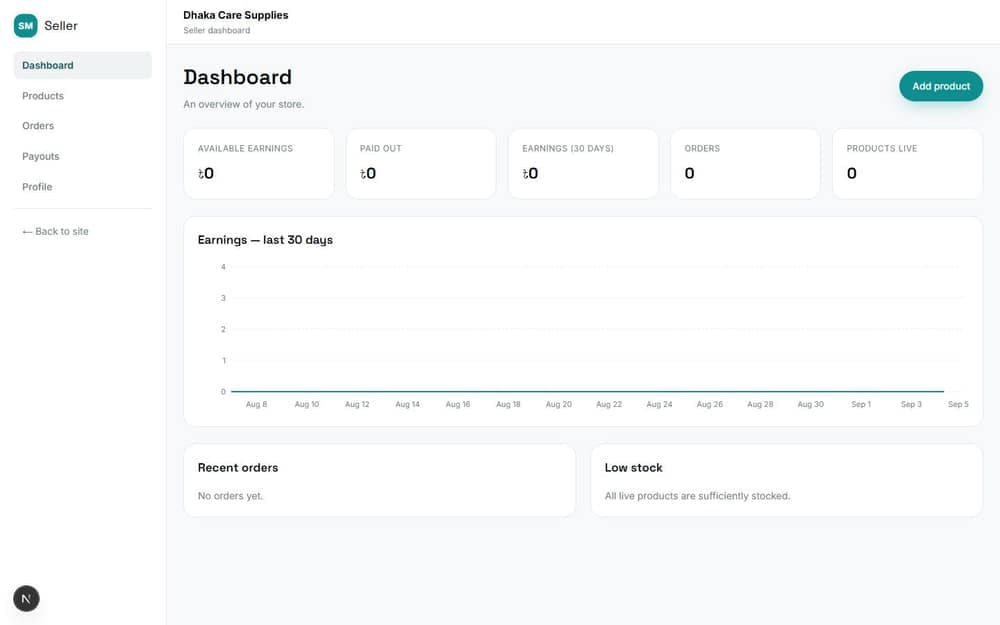
- 5Once approved, your seller portal opens. List products, watch orders that include your items, and see what you have earned after the platform fee.
How listing changes are reviewed
Price and stock changes take effect immediately. Changes to a listing's name, description, images or category go to Spiber Med for review, and the version customers already see stays up until the change is approved. So editing a live listing never takes it off sale.
Getting help
Three ways to reach a person, and one that answers straight away.
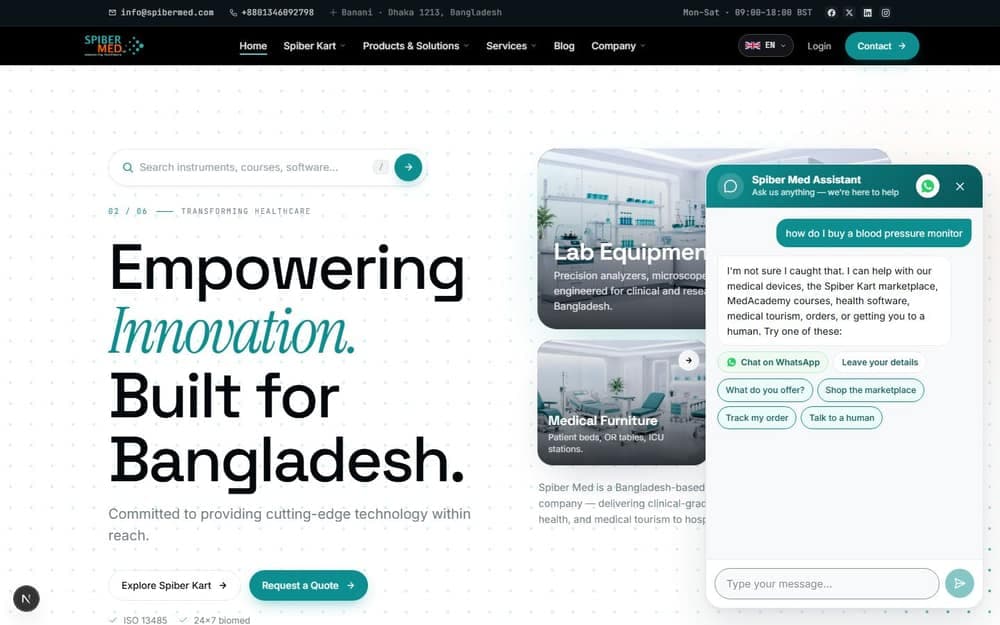
- The chat assistant, bottom right on every page. It answers questions about products, orders and services in English, Bangla and Japanese, can look up an order or a case from its reference, and will hand you to a person when you ask.
- The contact form, for anything that needs a written reply. Choose the enquiry type so it reaches the right team.
- Phone and email, in the bar at the top of every page.
When you get in touch about something specific, quote its reference. Orders begin SPM, quotations SPM-RFQ, medical cases SPM-CASE and seller applications SPM-SEL. It is the fastest way for anyone to find your record.